UI
If your target exposes a public web interface, Spectral can test it directly. No API access or custom integration required.
How it works
Spectral uses browser automation to navigate to the page, locate the chat input, and conduct conversations turn by turn, exactly as a human tester would.
The only requirement is that the interface be publicly reachable.
Authenticated targets
If your target is only reachable after login, that is not an issue: Spectral just needs to authenticate first. Two methods are available:
- Credential login: Spectral submits a username and password you provide.
- SSO login: you sign in yourself once through single sign-on, and Spectral reuses that session.
Configure either one per UI target, in the target creation wizard or by editing an existing target.
Credential login
Turn on Provide credentials and enter the login username and password. Spectral submits them to the login form before starting each run. Credentials are encrypted at rest and never returned in API responses; they read back as ****.
Use this when the login is a standard username and password form with no second factor and no identity-provider redirect.
SSO login
Use SSO when the target sits behind single sign-on, a redirect to an identity provider (Okta, Entra ID, Google), or two-factor authentication. Spectral does not script these flows. You complete the login yourself, once, in a live browser session, and Spectral reuses the authenticated session for every evaluation.
Setup is interactive, so it runs in the dashboard:
- In the target's connection settings, turn on Requires SSO authentication. This turns off credential login.
- Spectral opens a live browser session and shows it to you in the dashboard.
- Sign in exactly as you normally would, including any SSO redirect and 2FA, until the app is fully logged in.
- Click Done. Spectral captures the authenticated session and stores it with the target.
Every evaluation then runs inside that saved session, starting already logged in. You do not re-enter anything per run.
Login flows vary widely across providers. If Spectral cannot complete authentication for your setup, contact us and we'll help you get the target connected.
Saved SSO sessions expire, the way a browser login eventually does. Spectral does not check the session up front; it detects an expired session when an evaluation tries to start and the target rejects it.
When that happens, the run fails with a notice that the session has expired and a Re-authenticate action. Open it, sign in again in the live browser, and click Done to refresh the stored session. The rest of the target's configuration is unchanged.
Custom chat initialization
Spectral is instructed to autonomously perform the browser actions needed to set up a chat with a UI target, e.g. accepting cookies, dismissing popups, logging in with credentials when provided, and opening the chat widget. We have validated this setup across 100+ diverse chat interfaces.
However, some interfaces may require extra custom steps, e.g. selecting a required tool or mode, choosing an option from a pre-chat menu, or entering a specific value in an intake form. These steps are specific to the user's setup, so Spectral cannot infer them on its own.
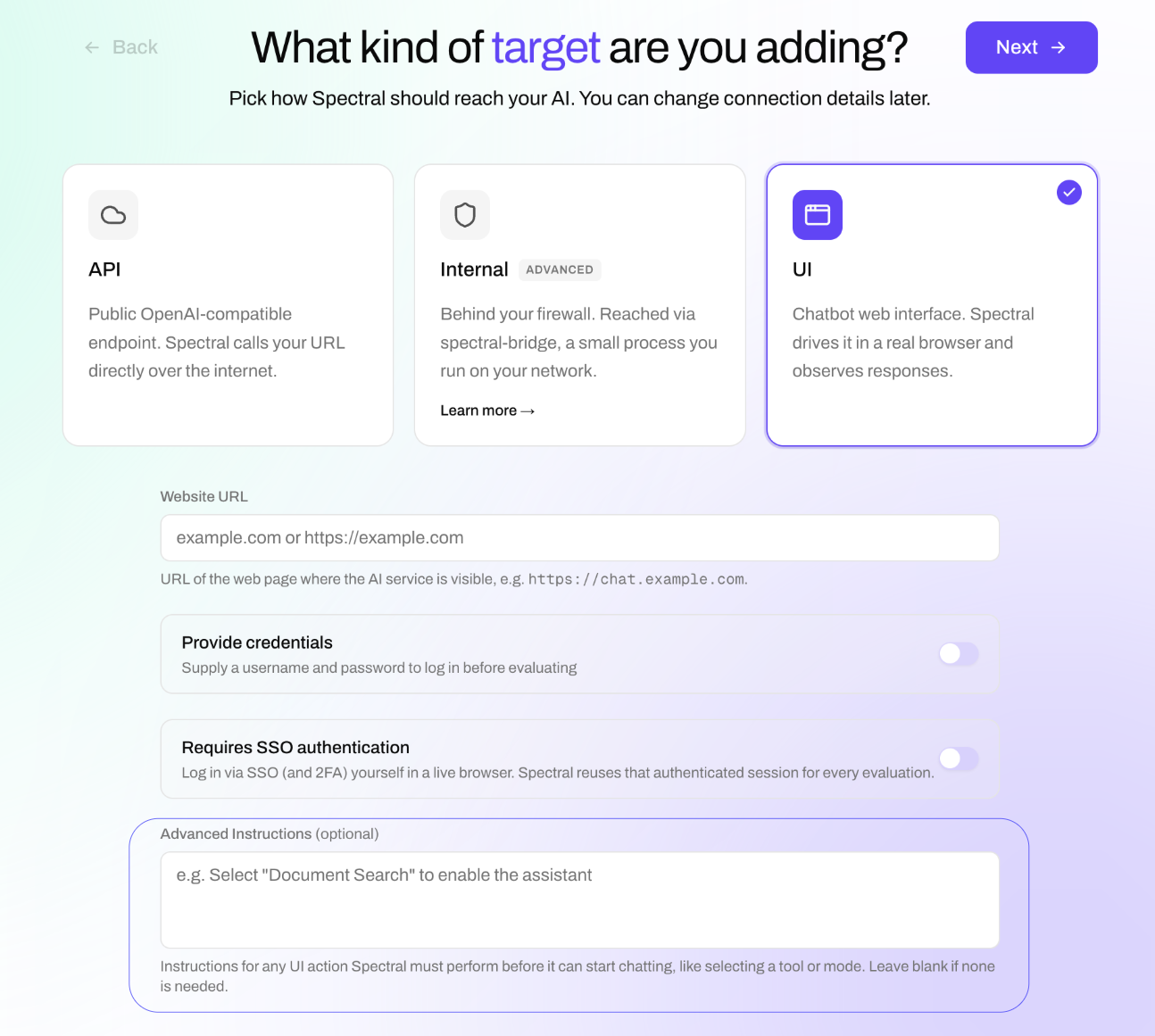
For these cases, describe the steps as a plain-language instruction in the Advanced Instructions field, available when creating or editing a UI target. Spectral runs them once, before the conversation begins. For example:
Enter the request ID
DEMO-2026in the verification field to start the conversation.
Select the "Document Search" tool to enable the assistant.
Leave the instruction empty if your interface needs no such steps; Spectral then activates the chat on its own. It accepts up to 2000 characters.